
Kepler Dual Battery: Display SettingsUpdated 2 months ago
The Kepler 52V features a sophisticated display that allows you to customize your riding experience, monitor dual-battery levels, and secure your bike with a password.
1. The Keypad Layout
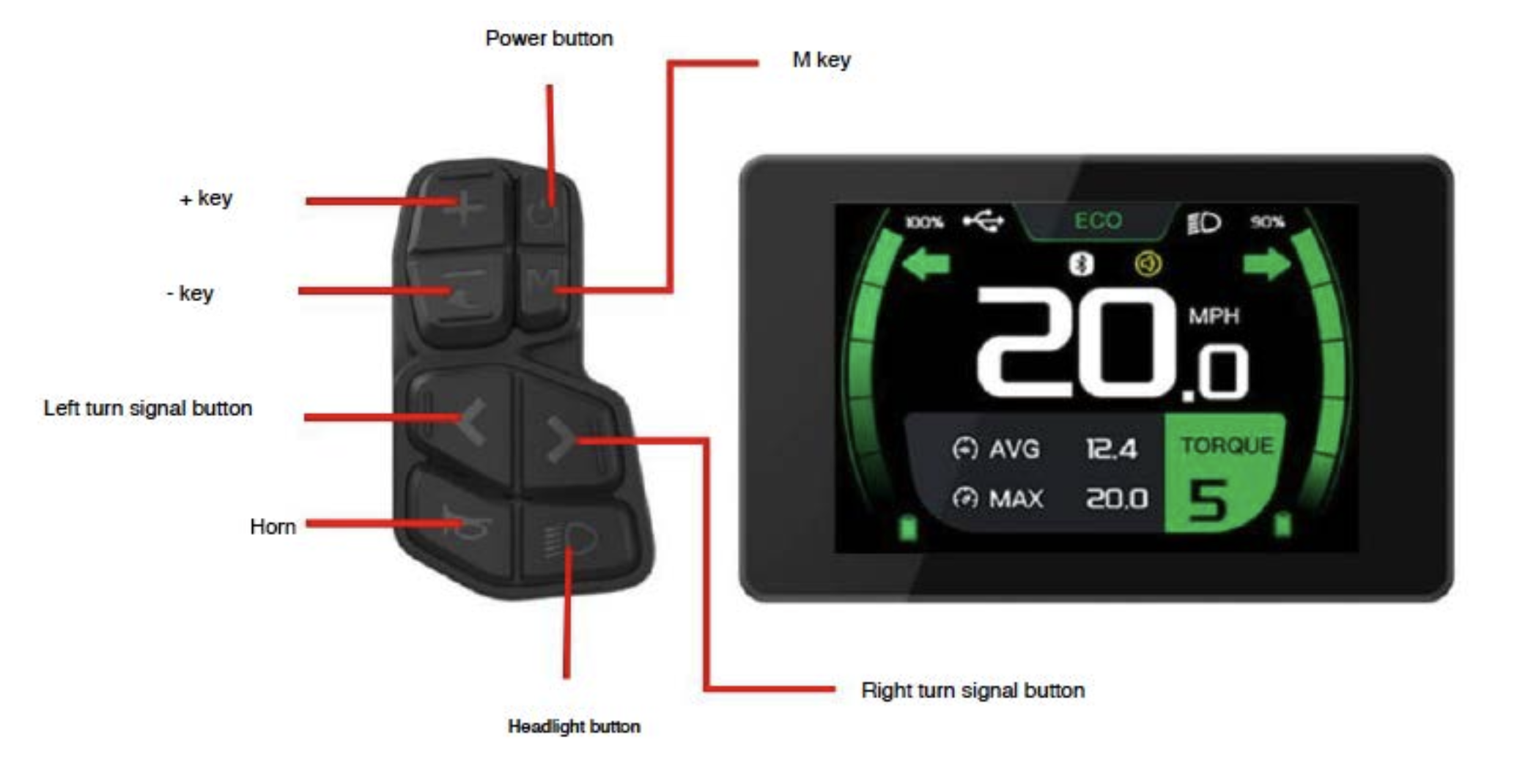
Before diving into settings, familiarize yourself with the handlebar keypad:
- Power Button: Turns the display and motor on or off.
- "+" and "-" Keys: Increase or decrease your pedal assist levels.
- M Key: Used to cycle through trip data and enter the settings menu.
- Light/Horn/Signals: Dedicated buttons for your high/low beams, horn, and turn signals.
2. Entering the Settings Menu
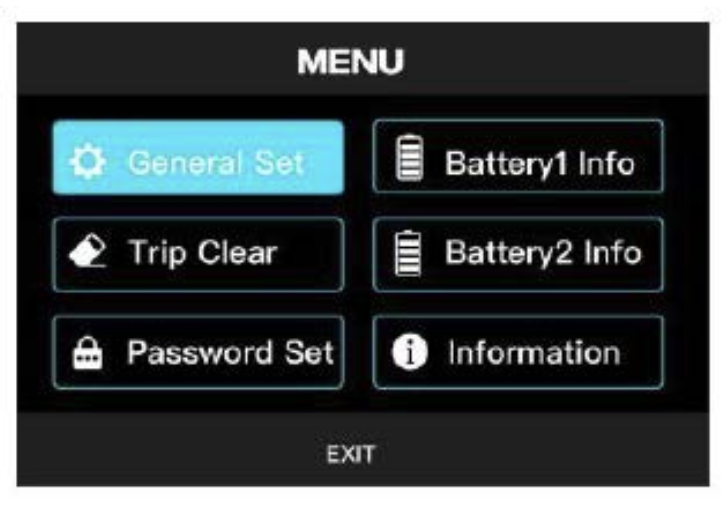
To customize your bike's parameters:
- Power On: Press and hold the power button for 3 seconds.
- Access Menu: Long-press the M Key to enter the first-level menu.
- Navigate: Use the "+" or "-" keys to highlight an icon, and short-press the M Key to select it.
- Exit: Select "RETURN" or "EXIT" to go back to the main riding screen.
3. Key Advanced Settings
| Setting | Description | Instructions |
|---|---|---|
| Password Set | Adds an extra layer of security by requiring a code to start the bike. | Go to Password Set > PWD1 SET to enable. Use PWD1 ADJ to set your code. Note: Take a photo of your code; if you forget it, the display must be replaced. |
| Cadence/Torque Sensor | Switch between Torque (natural feel) and Cadence (consistent power) sensors. | From the main menu, long-press the "+" button to swap modes instantly. |
| Ride Mode | Changes the power delivery profiles. | Simultaneously press and hold "+" and "M" on the main interface to switch between ECO, TRAIL, and BOOST modes. |
| Mileage Reset | Clears your "Trip" distance for a new journey. | Navigate to Trip Clear, select the Clear icon, and press the M Key to reset to zero. |
| Unit/Brightness | Adjusts display visibility and measurement units. | Enter General Set to switch between MPH/KMH or adjust screen brightness from 1 (darkest) to 5 (brightest). |
4. Important Display Icons
- Dual Battery Levels:When both batteries are connected, the display shows independent charge percentages and levels for Battery 1 and Battery 2.
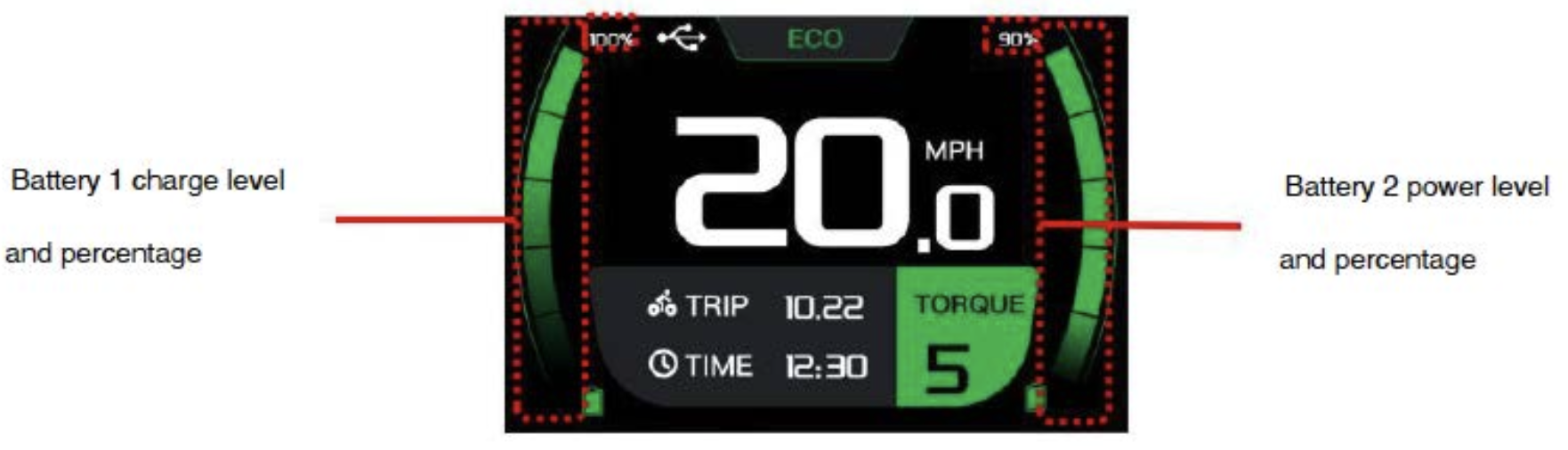
- USB Charging: A USB icon appears when a device is charging via the Type-C port. Note: Unplug devices when the bike is off.
- Bluetooth: This icon indicates a successful connection to the Ariel Rider app.
WARNING: Do NOT change the "System Voltage" or "Wheel Size" settings in the menu. These are factory-set to ensure your speedometer is accurate and your motor operates safely within its 52V limits.
Need Additional Help?
If you need further assistance configuring your display, please reach out to our support team through our contact form.